
Turning paper scans into text that can be worked with
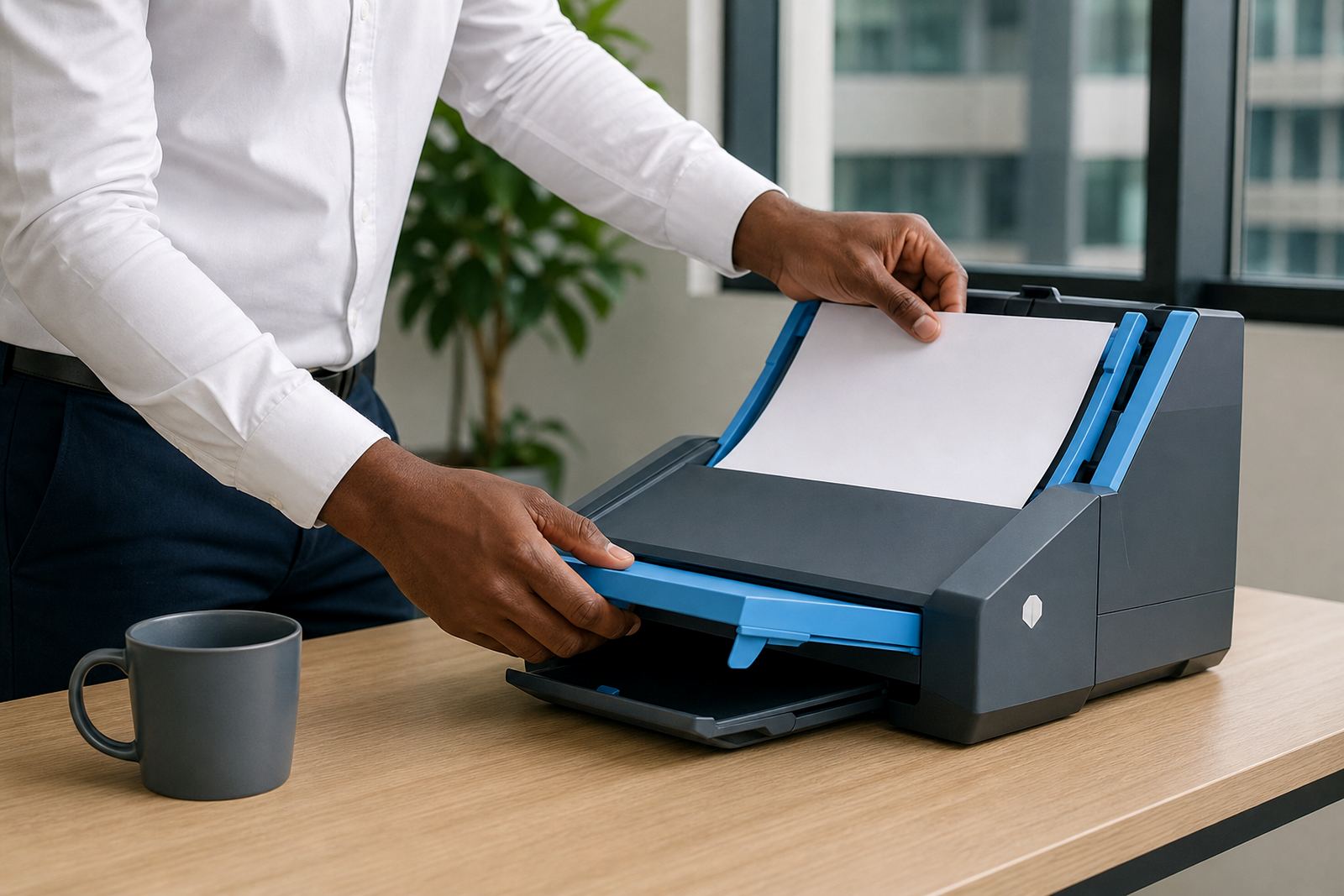
Scanned OCR is the document capture layer used when a firm has paper files, scan folders or sent PDFs that still behave like pictures. The software reads the page image and converts the visible text into a searchable layer, so names, dates, matter references and wording can be found inside the file rather than only by filename.
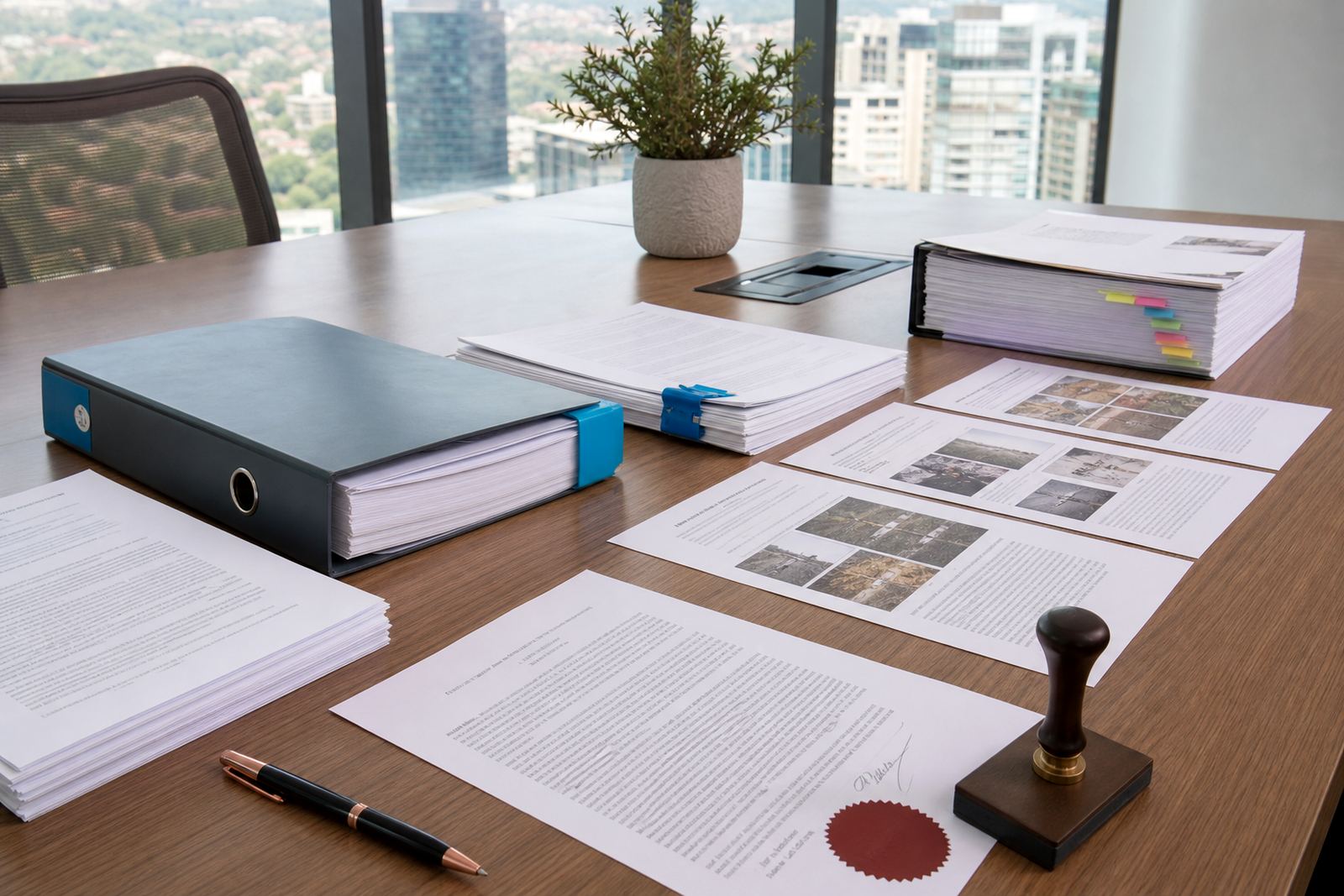
For South African firms, that matters when a matter has years of incoming correspondence, legacy bundles and attachments from courts, clients and correspondent attorneys. Instead of opening each scan to check what is inside, teams can search through the text and move faster through review, cross checking and evidence sorting. The output is practical for document assembly, matter management and e discovery workflows where tidy indexing saves time.
- Searchable text output for scanned PDFs and image based files
- Useful for pleadings, contracts, annexures and correspondence bundles
- Works as part of a wider matter and document workflow
Page volumes, file types and scan quality
The right OCR setup depends on how the practice scans and stores files. A small conveyancing or collections team may only need routine document batches, while a litigation practice in Sandton or Pretoria may process heavier bundles with mixed page quality, stamps, signatures and handwritten notes. Good source scans make a clear difference, especially where copy quality varies across branches or from older archive material.
Options are usually set around page count, file format and the way the text needs to be indexed. Common inputs include single page scans, multipage PDFs and mixed folders of supporting papers. Where pages are skewed, faint or marked up, the settings may need tuning to support cleaner text output and more reliable search results.
- Single page and multipage document handling
- PDF and image file support for scanned records
- Useful for clean scans, older archive copies and mixed quality bundles
- Can be configured for matter based indexing and folder structure
Where OCR fits in a legal practice flow
This product suits firms that work with case files, evidence packs and high volume correspondence. It is especially useful where legal teams need to search scanned documents during drafting, discovery prep, file audits or client updates. In offices that handle matters across Johannesburg, Cape Town, Durban and Bloemfontein, scanned text makes it easier to keep one working view across branches and shared teams.
It also helps where document sets must be split by matter, date or document type. A scanned affidavit, for example, can be easier to place in the right review queue when the wording is visible to search. The same applies to letters, annexures, notices and supporting statements that need to be traced later without trawling through image files by hand.
- Litigation file review and bundle preparation
- Evidence indexing and review queues
- Matter archiving and retrieval work
- Template driven drafting that depends on scanned source material
Setup needs for accurate scanning and indexing
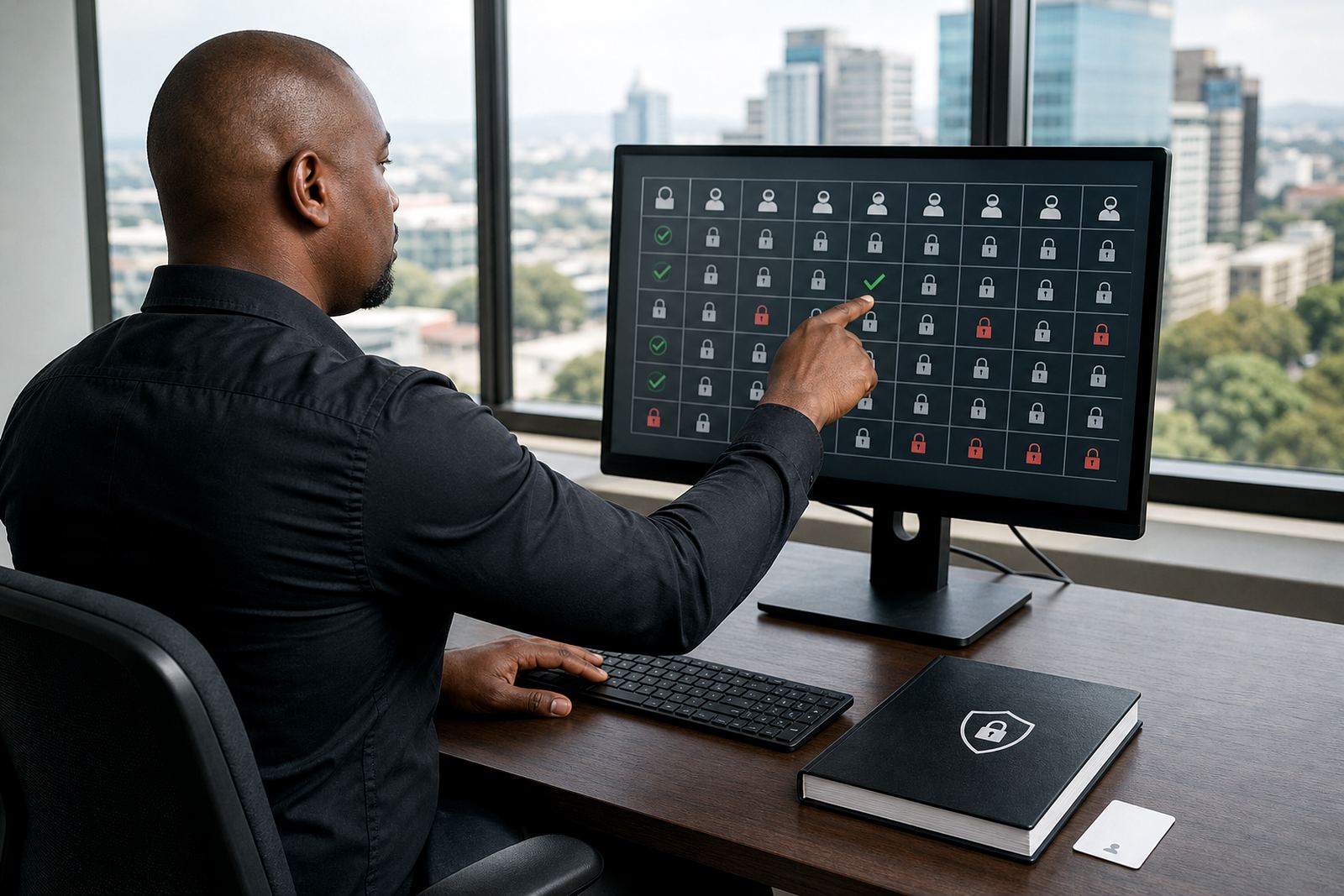
Scanned OCR is usually configured as part of a document workflow rather than as a stand alone tool. Setup often includes document routing, file naming rules, permissions, folder structure and matter level tagging so the right people can see the right material. In firms with strict access controls, permissions should match practice roles and confidentiality needs, especially where matters contain sensitive personal information under POPIA related handling rules.
For firms moving from shared drives or mixed storage habits, the onboarding work often includes sample files, test batches and mapping of document types. That helps confirm how the scanned text should appear, where it lands in the system and who may edit, view or export it. If the practice uses remote working or branch based teams, secure hosting setup and user access planning matter just as much as the OCR itself.
- Document permissions by role or matter team
- Folder and matter mapping for clean retrieval
- Support for secure hosting and controlled access
- Useful during migration from older scan archives
Care, cleanup and keeping the text useful
OCR output stays better when source files are kept tidy. Pages with heavy shadows, folded corners, dark stamps or poor contrast can weaken results, so scan quality checks are worth building into office routine. Where a file has been scanned upside down or in mixed batches, those issues are worth correcting before the text is indexed for later use.
Periodic health checks help catch bad file naming, duplicate scans and misfiled documents before they spread through the system. For busy firms, this is not just about neatness. It affects search accuracy, matter tracking and the time spent pulling bundles for hearings, internal review or client reporting. A little cleanup during capture saves a fair amount of hunting later on.
- Keep source scans straight, clear and consistent
- Remove duplicates and misfiled pages during review
- Use regular checks on indexing and folder logic
- Update templates and tags when matter types change
Details to confirm before the setup is mapped
Before configuring Scanned OCR for a law firm, it helps to confirm how the team works with documents day to day. That includes the type of matters handled, the average file size, the current storage method and whether the firm needs one index across branches or separate matter sets. The more clearly those parts are defined, the cleaner the workflow becomes when staff start using the system.
It is also worth confirming the level of search accuracy expected, the need for evidence imports, and whether users will work from benchtop, laptop or shared office access. Some firms want OCR only for archived scans, while others need it built into every new matter. Either way, the setup should match the firm’s filing habits and security rules, not force staff into awkward workarounds.
- Matter types and document volume
- Current scan quality and file formats
- Access rules for attorneys, paralegals and ops teams
- Search, indexing and retrieval requirements
- Branch setup for Johannesburg, Pretoria, Cape Town, Durban or Bloemfontein
Key facts
| Product type | Scanned OCR module for legal document search and retrieval |
|---|---|
| Input formats | Scanned PDF, multipage PDF, image based files, mixed scan folders |
| Core output | Searchable text layer with matter aware indexing |
| Common use cases | Pleadings, affidavits, annexures, correspondence, evidence packs |
| Security | Role based access, secure hosting options, controlled document permissions |
| Setup options | Branch mapping, template linking, workflow configuration, migration support |